SVG Path Editor & Visualizer
Visualize anchor & Bezier nodes, scale/shift coordinates, and export JSX or CSS clip-paths.
SVG Optimizer & Minifier
Strip Figma and Illustrator metadata bloat from SVG files locally.
SVG to PNG & WebP
Render vector SVGs into high-DPI PNG or WebP assets up to 8x scale.
Decoding the SVG <path d="..."> Micro-Language
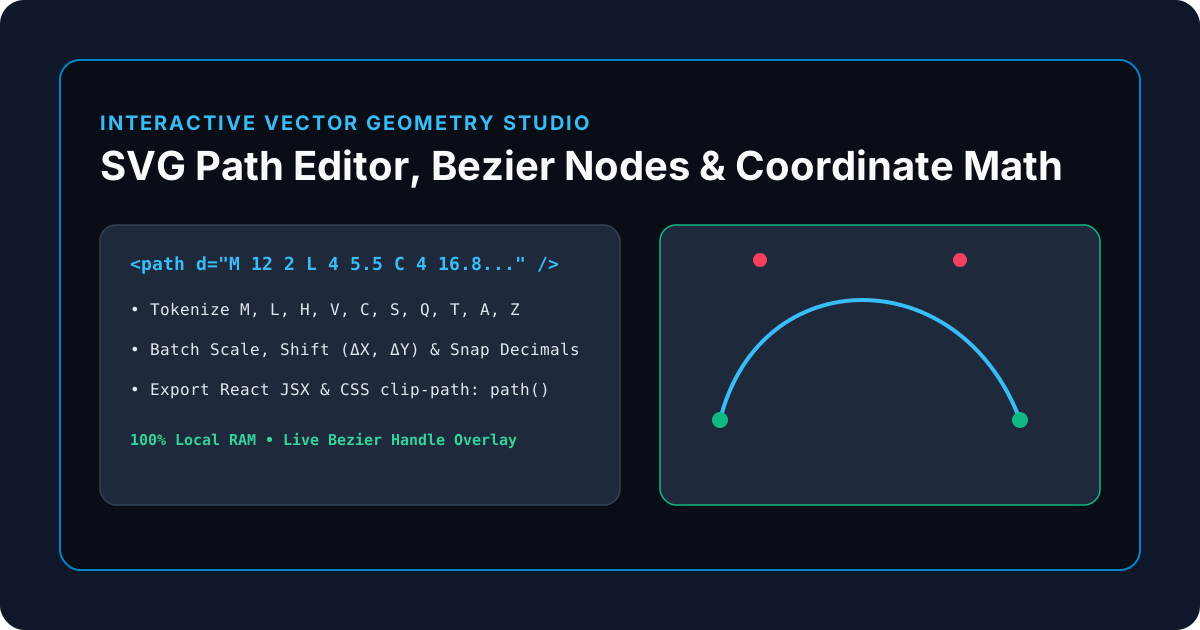
Every complex vector icon on the modern web boils down to a compact string of single-letter commands inside an SVG <path d="..."> attribute. With the KitWharf SVG Path Editor, Visualizer & Bezier Inspector, you can inspect every anchor vertex and Bezier control handle visually, scale or translate coordinates in bulk, and export directly to React JSX or CSS clip-path.
| Command | Parameters | Vector Geometry Action |
|---|---|---|
M / m |
x y |
Move To: Lifts the virtual pen and starts a new subpath at (x, y) |
L / l |
x y |
Line To: Draws a straight line segment to (x, y) |
H / V |
x or y |
Horizontal / Vertical Line: Draws a horizontal or vertical line |
C / c |
x1 y1, x2 y2, x y |
Cubic Bezier: Uses start control point (x1,y1) and end control point (x2,y2) |
Q / q |
x1 y1, x y |
Quadratic Bezier: Shares a single control point (x1,y1) between both endpoints |
Z / z |
(none) | Close Path: Draws a straight line back to the initial M vertex |
Deep Dive: Cubic (C / S) vs. Quadratic (Q / T) Bezier Curves Explained
When editing vector icons or custom UI illustrations in the KitWharf SVG Path Editor & Visualizer, understanding how Bezier control handles shape a curve allows you to fix lumpy corners and shrink SVG payload sizes:
1. Cubic Bezier Curves (C x1 y1, x2 y2, x y)
A Cubic Bezier segment starts at the current pen position P0 = (x0, y0) and ends at P3 = (x, y), guided by two independent control points:
P1 = (x1, y1)controls the departure tangent angle and velocity leavingP0.P2 = (x2, y2)controls the arrival tangent angle and velocity enteringP3.- Smooth Cubic Continuation (
S x2 y2, x y): When chaining two smooth Cubic curves together, theScommand omits(x1, y1)and automatically reflects the previous curve's second control point across the shared anchor vertex, guaranteeing a mathematically smoothC1continuous join while saving 33% of coordinate bytes.
2. Quadratic Bezier Curves (Q x1 y1, x y)
A Quadratic Bezier segment uses a single shared control point P1 = (x1, y1) between the start and end anchors. While less flexible than a Cubic curve (it cannot form an S-shaped inflection point within a single segment), Quadratic curves require only 4 numbers instead of 6 and are heavily used in TrueType/OpenType font glyphs and simple rounded UI badges.
Solving the CSS clip-path: path('...') Coordinate Scaling Problem
One of the biggest frustrations in modern CSS layout design is that clip-path: path('...') evaluates coordinates in hardcoded CSS pixels, completely ignoring responsive container percentages unless the path coordinates match the element's dimensions!
For example, if you copy an icon path designed inside a viewBox="0 0 24 24" grid and apply it as clip-path: path('M 12 2 L 4 5.5 ...') on a 240px × 240px card, the clipped shape renders as a tiny 24px speck in the top-left corner.
With Tab 2 (Command Table & Transformer) in the SVG Path Editor:
- Paste your
24×24path string into Tab 1. - Switch to Tab 2, enter a Scale multiplier of
10(to scale24px → 240px), and click Scale. - Click Round 1 Dec or Snap Integer to strip trailing floating-point noise (e.g., turning
13.45000000001into13.5). - Open Tab 3 (SVG, React JSX & CSS Exporter) and copy the ready-to-use
clip-path: path('...')declaration or TypeScript React JSX component!
Absolute (UPPERCASE) vs. Relative (lowercase) Coordinates & Shifting
When combining multiple subpaths into a compound icon (such as adding a keyhole inside a shield or shifting an icon 2px down and right to center it inside a 24×24 frame):
- Use the Shift (
ΔX, ΔY) tool in Tab 2 to translate all absolute anchor and control coordinates simultaneously without manually recalculating dozens of X/Y pairs by hand.